
How ContactContinuity Works
Every day, important contact changes are communicated through email. ContactContinuity analyzes those emails, prepares the appropriate HubSpot recommendations, and lets you review every change before anything is written to your CRM.
How does ContactContinuity work?
ContactContinuity identifies important email replies such as "I've left the company," analyzes what changed, prepares the appropriate HubSpot recommendations, and requires your approval before updating HubSpot.
Receive an Email Reply
Every day someone on your team receives a reply that changes a business relationship. Messages like "I've left the company," "Please contact Sarah going forward," "John has retired," "I'm covering this territory," or "Please use our accounting mailbox" all signal that something in HubSpot should change.
These messages usually stay in someone's inbox. ContactContinuity connects to the mailboxes you choose and monitors only for these signals. Everything else is ignored.
Hi,
Friday will be my last day at Acme Corp. Moving forward, please direct all account inquiries to David Chen (d.chen@acme.com) who will be taking over this portfolio.
— Sarah
Analyze What Changed
A contact change is rarely just a contact update. ContactContinuity reads the email and determines the complete picture: who changed, whether a replacement was named, whether that replacement already exists in HubSpot, and which records, properties, workflows, and associations are affected. It checks the CRM before preparing anything — so the recommendation reflects your actual data, not a generic template.
To see the full range of email scenarios ContactContinuity handles, explore common email reply scenarios.
Prepare HubSpot Recommendations
Based on what it found in HubSpot, ContactContinuity prepares a specific list of recommended changes. Every item is scoped to the exact records involved — no guessing, no generic cleanup.
One email can affect contacts, marketing contact status, company and deal associations, workflows, and more. See exactly what ContactContinuity updates in HubSpot.
Nothing changes automatically.
Every recommendation waits in the Relationship Inbox until a member of your team reviews and approves it.
Review and Approve
Every recommendation appears in the Relationship Inbox — a review queue built for RevOps managers, HubSpot admins, and account owners. From there, your team can approve the recommendation, edit individual actions, dismiss it, or select a different replacement before anything is written to HubSpot.
Nothing reaches HubSpot until someone on your team says it should.
Every recommended HubSpot update is presented in the Relationship Inbox for review. You decide whether to approve, correct, re-analyze, or dismiss each recommendation before anything is written to HubSpot.
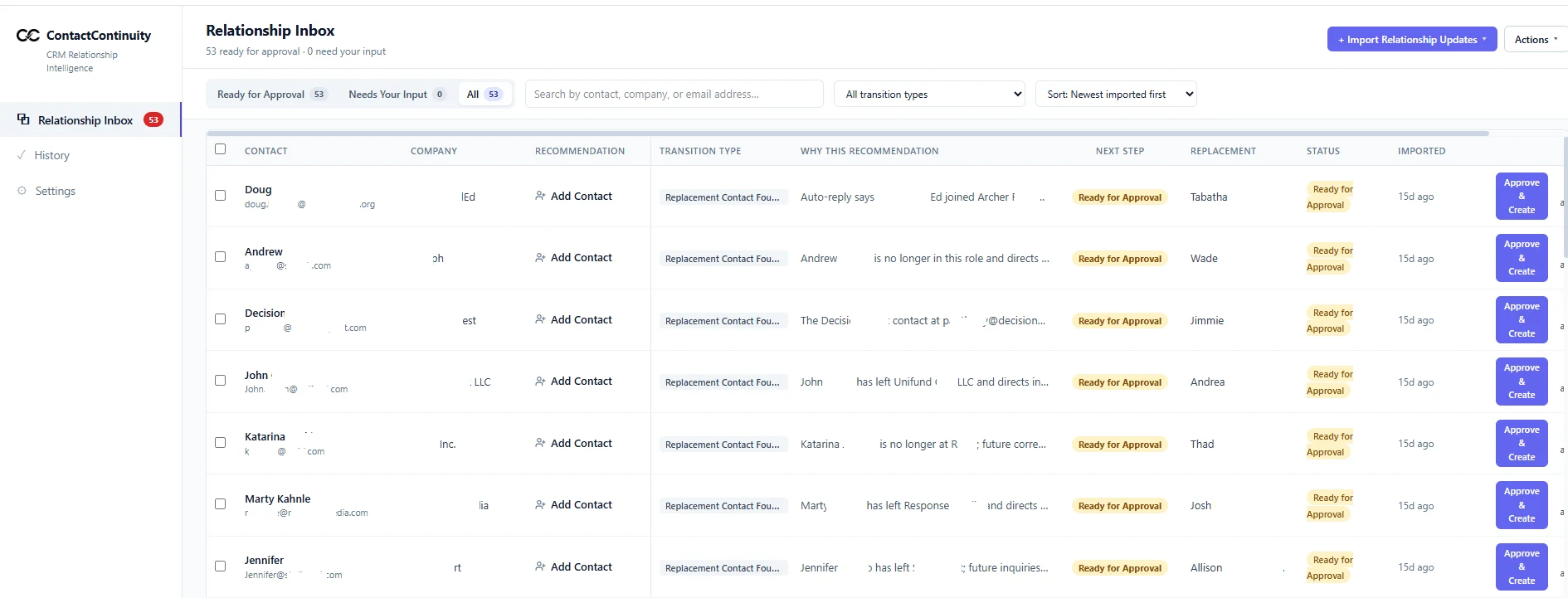
The Relationship Inbox shows every recommended HubSpot update waiting for review and approval.
Nothing Changes Automatically
Every recommendation is reviewed by an authorized user before anything is written to HubSpot.
Update HubSpot
Once approved, ContactContinuity writes the changes to HubSpot and records every action on the contact timeline — so the history lives exactly where your data lives.
Anyone on your team can see what changed, when it happened, and who approved it. No external audit tool required.
Relationship transition approved
Replacement contact created
Departed contact marked inactive
Marketing contact updated
Transition note added
Follow-up task created
Approved by admin@acme.com
ContactContinuity recognizes emails like these.
These messages arrive every day. They usually get read, filed, and forgotten before HubSpot is updated.
"I've left the company."
"John has retired."
"Please contact Sarah going forward."
"I'm covering while Jennifer is away."
"Our accounting mailbox has changed."
"My new email address is…"
For the full range of scenarios ContactContinuity handles, explore common email reply scenarios — or read why ContactContinuity was built.
See what ContactContinuity recommends for your own email replies.
We'll connect a mailbox and show you exactly what ContactContinuity would determine — and what it would recommend for HubSpot — before anything is written.
Ready to stop manually processing "I've left the company" email replies?
Compare ContactContinuity pricing · See exactly what ContactContinuity updates in HubSpot · Browse practical HubSpot resources